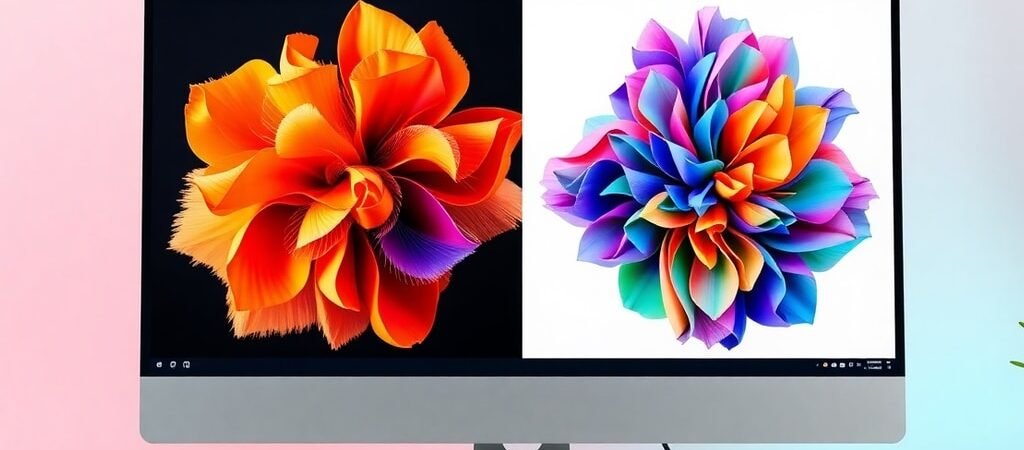
Generating an image without making an account takes about ten seconds. Working out whether you are allowed to use it on a product page takes rather longer, and it is the question that actually matters if the image is for anything other than amusement.
Two things are worth separating here, because they get conflated constantly. Whether a tool lets you use the output commercially is a matter of its terms. Whether you own the result is a matter of copyright law, and the answer there is less comfortable than most people assume.
You Probably Do Not Own It
The US Copyright Office has been consistent: copyright protects human authorship. Its guidance and Review Board decisions on AI establish that purely AI-generated material is not registrable, and that when a work contains AI-generated content the applicant must disclose those portions. Protection attaches to the human contribution, not to the machine output.
Typing a prompt has not so far been treated as enough human authorship on its own. Arrange, edit, composite or substantially alter the output and you have a claim over what you added.
Photo by Jonathan Kemper on Unsplash
“No Sign-Up” Has a Hidden Cost
Skipping the account is the selling point. It also means you never saw a terms page, never agreed to a licence you could later look up, and have no account in which to check what you agreed to.
The terms still apply. You simply have no record of them, and no way to prove which version was live on the day you generated the image. For anything commercial that is a worse position than spending thirty seconds on an email signup.
| What no-signup tools commonly do | Why it matters later |
|---|---|
| Watermark the output | Removing it may breach the terms even where use is otherwise allowed |
| Cap resolution | Fine on screen, unusable in print or on a large banner |
| Reserve commercial use for paid tiers | The most common restriction, and the least visible one |
| Publish your generations to a public gallery | Anything you typed as a prompt may be visible |
| Keep no history for you | You cannot re-download or prove when you made it |
Generating an image takes ten seconds. Working out whether you are allowed to use it takes rather longer.
The Question to Ask First
Not “which generator is best” but “what is this image for”. The answer changes the requirement completely.
| Use | Free no-signup adequate? |
|---|---|
| Draft or mockup, internal only | Yes, and this is what these tools are genuinely good for |
| Blog illustration on your own site | Usually, if the terms permit commercial use |
| Product packaging or paid advertising | Check the licence properly first, and keep a copy of it |
| A logo or brand mark | No. You need something you can actually own |
| Anything depicting a real person | No, and the issue is likeness rights rather than copyright |
Photo by DESIGNECOLOGIST on Unsplash
A Workable Approach
- Use no-signup tools for drafts. Iterating on composition costs nothing and commits nothing.
- Make an account before anything ships. So the licence terms and your generation history exist somewhere you can find them.
- Save the terms page as a PDF on the day. Ten seconds now, and the only way to show what you agreed to when the page changes.
- Edit meaningfully if the image matters. Composite it, retouch it, place it in a designed layout. Your contribution is the part with protection.
- Keep the prompt. Useful for regenerating variants, and it documents your process.
The same trade between free convenience and contractual clarity runs through the whole category, which I set out for general tooling in Free AI Tools for Small Business.
FAQ: Frequently Asked Questions
Can I sell products using AI-generated images?
Often the tool’s terms allow it, though many reserve commercial use for paid tiers. Separately, you may hold no copyright in the image itself, meaning you can use it but cannot stop others from using the same output.
Do I own images I generate?
Not the AI-generated portion, under current US Copyright Office guidance. Human-authored contributions you add are protectable, and must be distinguished from the AI-generated parts when registering.
Are free image generators without sign-up safe to use?
For drafts, yes. The risk is not malware but evidence: no account means no record of the licence you accepted or of when you generated the file.
Can I use one for my company logo?
Inadvisable. A logo’s value lies in exclusivity, and an asset you may hold no copyright in is a poor foundation for that.
General information, not legal advice. Copyright treatment of AI output is developing and differs between jurisdictions; take proper advice before relying on AI-generated imagery for anything commercially significant.