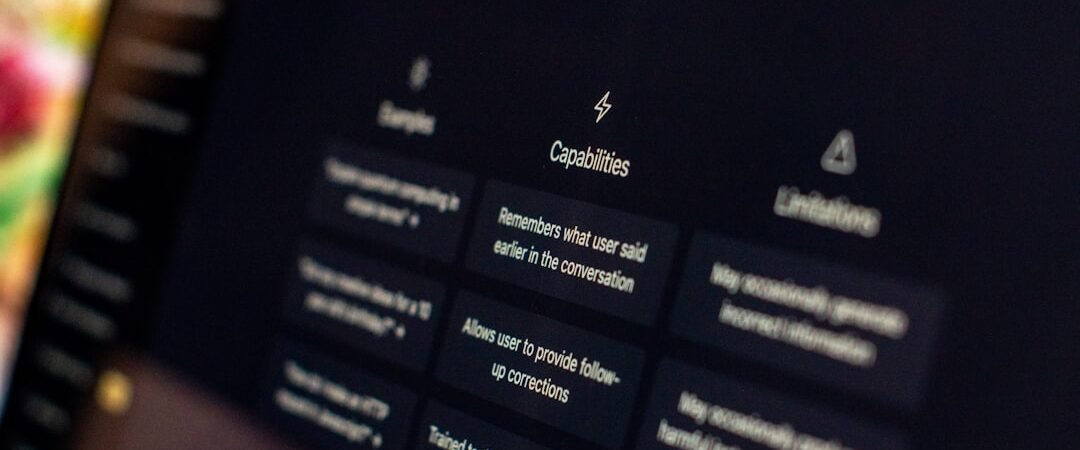
Photo by Emiliano Vittoriosi on Unsplash
Most people already know how to open ChatGPT and type into it. What they are missing is not instructions, it is the handful of habits that separate a useful answer from a bland one, plus an awareness of what changed this month.
So: the change first, then the habits, then the settings that are worth thirty seconds of your attention.
What Changed in August 2026
OpenAI removed the daily message cap on free accounts. Reported on 6 August and rolling out from the week of the 10th, free and Go accounts also moved to a newer default model.
Practically, the old advice to save your good questions because you only had ten before being downgraded no longer applies to text chat. Image generation, file uploads and voice kept their limits, and the heavier research and agent features remain on paid plans.
The Habits That Move Quality
Say who it is for
“Explain compound interest” and “explain compound interest to my fourteen-year-old who finds maths boring” produce genuinely different answers. Audience is the highest-value word count you can spend.
Give it something to work from
Its weakest mode is inventing from nothing; its strongest is transforming what you supply. Paste your rough notes, your bad draft, the actual email you received. Output quality tracks input specificity closely.
Ask for the objection
“What is wrong with this plan” gets you further than “is this plan good”, because agreement is its default posture. Pushing back on a correct answer will often produce a retraction and a worse one, so request the counter-argument rather than testing by disagreeing.
Iterate rather than restart
A second message saying “shorter, and drop the third point” beats rewriting the original prompt. The context is already there.

Photo by Jonathan Kemper on Unsplash
It handles language well and facts poorly. That single line predicts most of what will go wrong.
What It Is Reliably Good and Bad At
| Reliable | Unreliable |
|---|---|
| Rewriting and restructuring your text | Specific figures, dates and prices |
| Explaining a concept several ways | Citations, which it will invent convincingly |
| Summarising something you provide | Recent events without searching |
| Generating options to choose from | Arithmetic done in prose |
| Translating between registers | Anything it agreed to after you pushed |
The pattern is that it handles language well and facts poorly. Tasks where the source material is in your message are the safe ones; tasks where it must supply the facts are where checking becomes mandatory.

Photo by FlyD on Unsplash
The Settings Worth Thirty Seconds
- Data controls. Free tiers are the likeliest to use conversations for model improvement, and the toggle is usually present but not on by default. Set it before you paste anything you would rather not share.
- Chat history. Turning it off changes what is retained. Worth deciding deliberately rather than by inertia.
- Custom instructions. Standing preferences applied to every conversation. “Be concise, no preamble” saves a line of typing forever.
- Memory, if offered. Convenient, and it means things you mentioned once persist. Review what it has stored occasionally.
A Reasonable First Week
Use it on things you can already judge. Rewrite an email you have written, explain something you understand, summarise an article you have read. You learn where it is wrong far faster from material where you would notice.
Then take one recurring task and do it there for a week. Habit beats breadth; the people who get value from this are not the ones who tried the most tools. More on framing requests well in How to Write Good AI Prompts.
FAQ: Frequently Asked Questions
Is ChatGPT free to use?
Yes, and since August 2026 the free tier no longer caps text conversations. Image, file and voice use still have limits, and deeper research features remain paid.
Why does it get facts wrong?
It produces plausible continuations of text rather than looking things up, unless it searches. Fluency and accuracy are separate properties, and confident phrasing is not a signal of either.
Are my conversations private?
Depends on your settings and plan. Free tiers commonly may use conversations for improvement with an opt-out available. Treat anything sensitive as unsuitable regardless.
How do I get better answers?
State the audience, supply the source material, ask for objections rather than approval, and refine in follow-up messages instead of rewriting the prompt.
Features, limits and settings described here reflect reporting as of 19 August 2026 and change frequently. Check the current product pages for what your account includes.