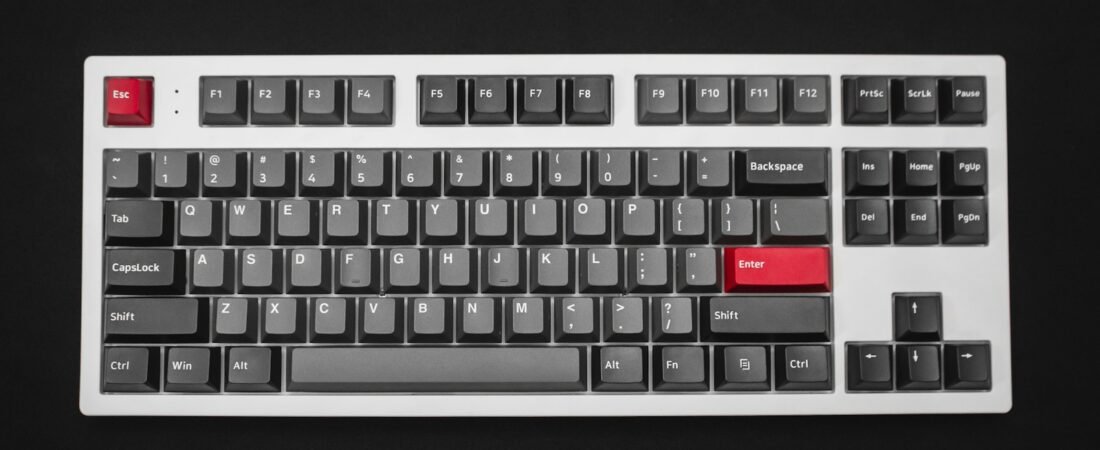
Photo by JL Cabrera on Unsplash
Setting up a computer to type Korean takes about two minutes. Getting it to behave takes longer, because there are two specific ways it goes wrong, and both look like the keyboard is broken when it is not. One is about which mode you are in. The other is about how Korean letters assemble into blocks while you type.
This guide covers how to type Korean on an ordinary English (QWERTY) keyboard in Windows, using Microsoft’s own instructions, then the two failure modes in detail, including one that catches web developers rather than learners.
Setting up: the two-minute part
According to Microsoft’s Korean IME guide, you add Korean in Settings under Time & language, then Language & region, then Add a language. You do not need to change your Windows display language. Windows installs the Microsoft IME, which handles both Hangul and Hanja.
After that, Windows key + Spacebar switches between your installed keyboards, and the system tray shows 한 when Korean is active. Macs and phones have equivalent settings. The layout almost everyone uses is the standard two-set layout, called dubeolsik, with consonants on the left half of the keyboard and vowels on the right.
Failure mode one: you are in the wrong mode
This is the one that confuses almost every beginner. Selecting the Korean keyboard is not enough on its own. The Korean IME has two input modes, and the tray icon shows which one is on: A for English letters and 가 for Hangul. Microsoft’s guide notes you can flip between them with the right Alt key, which acts as the 한/영 (Korean/English) key on keyboards that do not have one.
If you forget which mode you are in, you get one of two results. Type a Korean word in English mode and you get the Latin letters printed on those keys. I wrote a small script that maps Korean words to the keys they live on in the two-set layout, and the results are recognizable to anyone who types Korean:
| You meant to type | In English mode you get |
|---|---|
| 안녕하세요 (hello) | dkssudgktpdy |
| 감사합니다 (thank you) | rkatkgkqslek |
| 한글 (Hangul) | gksrmf |
dkssudgktpdy is common enough in Korea to work as a joke on its own. The reverse mistake is less funny: typing a password or an email address while the IME is in 가 mode turns it into Hangul, and the login fails with no hint why.
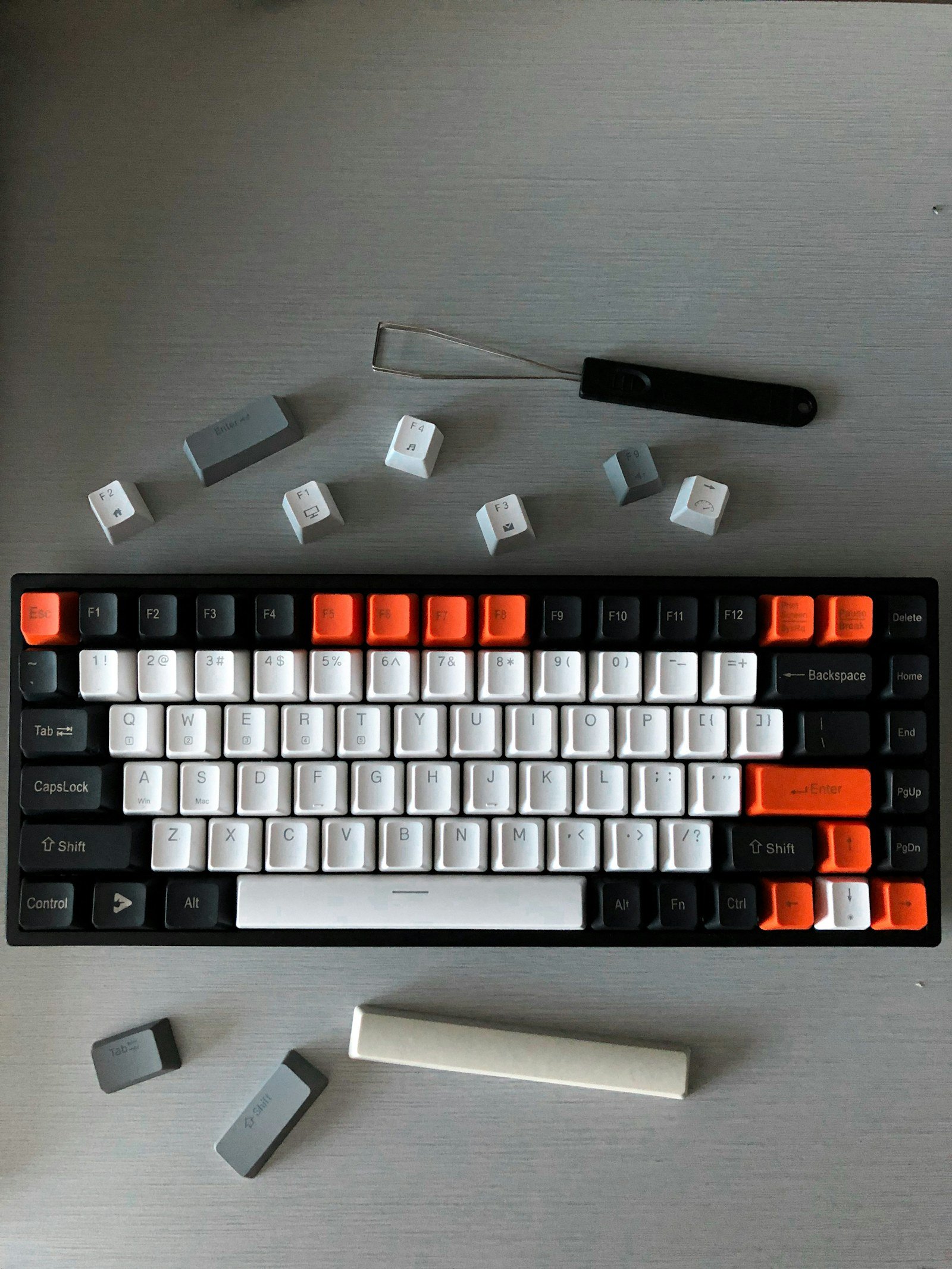
Photo by Bryan Natanael on Unsplash
Failure mode two: the letters move while you type
Korean letters are combined into syllable blocks, and the IME builds each block as you type. The surprising part for learners is that a letter you already typed can jump to the next block. Microsoft’s guide uses 여름 (summer) as its example: five letters, ㅇ ㅕ ㄹ ㅡ ㅁ. After the first three, the screen shows 열. Type ㅡ and the ㄹ moves into a new block, giving 여르, and ㅁ finishes it as 여름.
That rearranging is correct behavior, but it means the last syllable you typed is unfinished until the next key arrives. Most of the time nobody notices. It matters when something else reads the text before the IME has finished.
dufma for 여름, which matches the layout.Why failure mode two is a web developer’s problem
If you build chat apps, search boxes or forms, Korean users hit a classic bug: they type a message, press Enter, and the last syllable is either cut off or sent twice. The cause is that Enter arrives while the IME is still composing that last block, and the page treats it as a normal keypress.
MDN’s documentation for the keydown event gives the fix. Ignore key events that are part of an IME composition:
input.addEventListener("keydown", (event) => {
  if (event.isComposing || event.keyCode === 229) {
    return; // the IME is still assembling a syllable
  }
  if (event.key === "Enter") sendMessage();
});
The keyCode === 229 check looks redundant but is not. MDN notes that the composition events can fire just before or after the keydown at the edges of a session, so isComposing can be false for a key that is still part of composition. The deprecated keyCode value of 229 still flags it.
Japanese and Chinese input have the same issue for the same reason. Korean just surfaces it faster, because almost every syllable involves composition.
Photo by Samuel Angor on Unsplash
Tips that make Korean typing easier
Turn on the Windows on-screen keyboard (Windows key + Ctrl + O) while the Korean IME is active. It shows the Hangul letter on each key, which is faster than memorizing from a chart. Use Shift for the doubled consonants ㄲ, ㄸ, ㅃ, ㅆ and ㅉ, and for ㅒ and ㅖ. And if you need Chinese characters, type the Hangul and press right Ctrl to convert it to Hanja.
Korean also has a font side to the story: every one of those assembled blocks needs its own drawing, which is why Korean fonts are so much larger than English ones.
Short answers
How do I switch between Korean and English on Windows?
Press the right Alt key, which works as the 한/영 key on standard keyboards. The tray icon changes between A and 가.
Why does my keyboard type English letters when Korean is selected?
The Korean keyboard is active but its input mode is set to English. Switch to 가 mode with right Alt.
Do I need a Korean keyboard to type Korean?
No. Microsoft’s IME works with a standard 101 to 105 key keyboard. Korean keyboards just print the Hangul letters on the keys.
Why does the last Korean character disappear when I press Enter?
The app is handling Enter before the IME finishes the final syllable. It is a bug in that app, and developers can fix it by ignoring key events while isComposing is true.
Setup steps and key functions are from Microsoft’s Korean IME documentation; the keydown guidance is from MDN. The English-mode keystrokes were generated with a short script mapping each Hangul letter to its key on the standard two-set layout.